Unit 1: How To Use Canvas
Logging Into Canvas
Show or Hide Your Classes
Understanding the Home Page in Canvas
Click on the Question Marks ( ? ) for more information.
Turning in Assignments
The assignments that you will be turning in will take on a number of different forms. However, the procedure to turn in an assignment is pretty straightforward. The first thing you need to do is access the assignment. To do that, go the module where the assignment is listed and click on the link.

In the picture above, you would click on the “Assignment #03: Test Evaluating a Website” link. When you do that, you would see something like this.
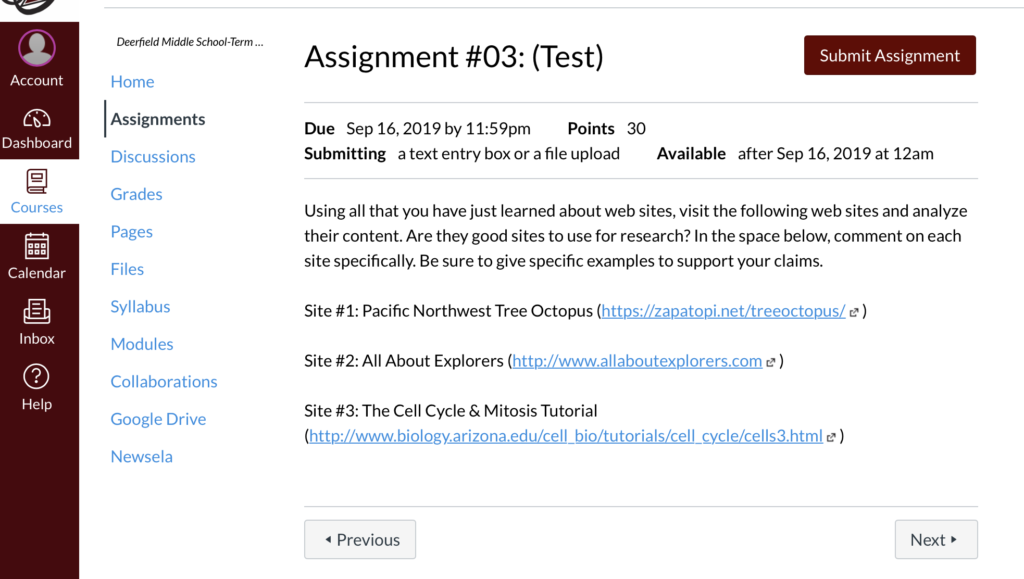
When you have completed the assignment, or are ready to work on it in a text area box on the website, you need to click on the big button in the upper right hand corner labeled “Submit Assignment”. Click on that will take you to a page that looks like the one below.
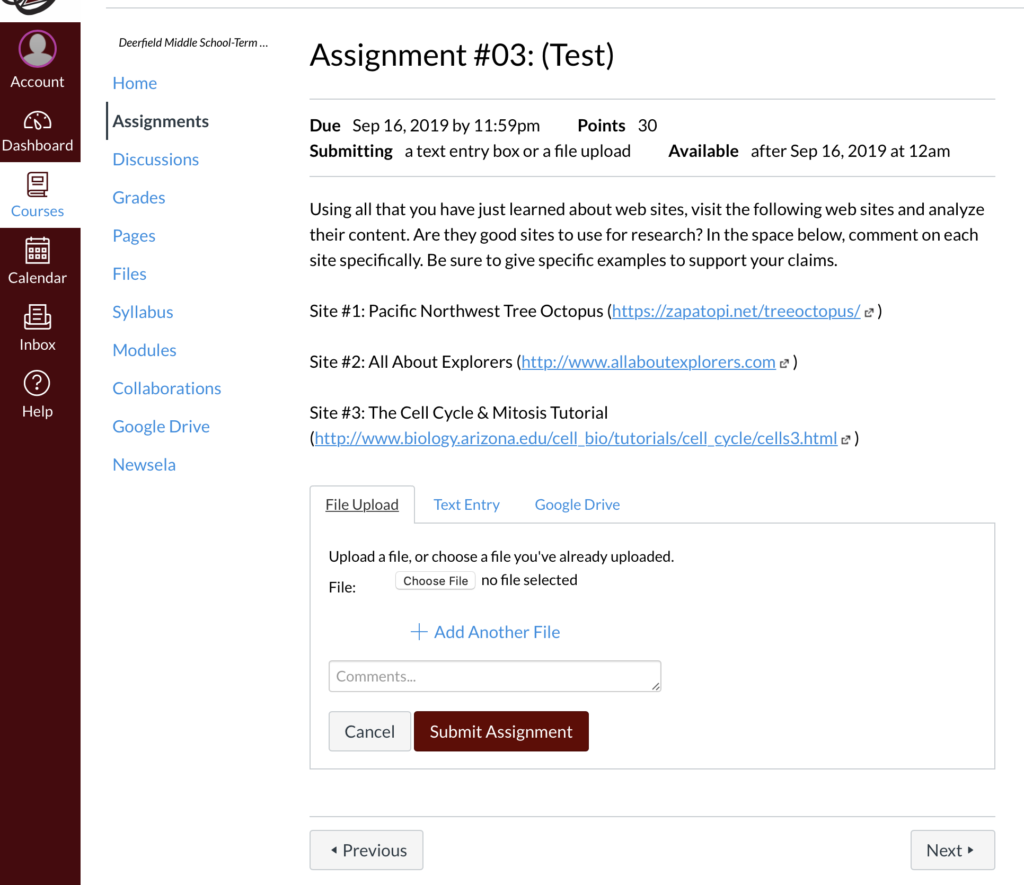
If you did your assignment on Pages, Word, or some other program, click on the button that is labelled “Choose File”. Search for the assignment file, select it and then click on the “Choose” button that will be in the lower right hand corner of the popup screen. Depending on the size of the file, you may need to wait a few seconds for the file to show up on your screen in the area next to the Choose File button that currently says “no file selected.” Once the file name shows up there, click on the Submit Assignment button. Again, you may need to wait a few seconds, but you should see a confirmation that your file has been submitted successfully.
Some assignments will require you to enter your answers in a text area box on the assignment page. If that is your only option, the text area box will automatically appear. If your teacher is giving you a choice, you may need to click on the tab that says “Text Entry”. You should see something like the view below.
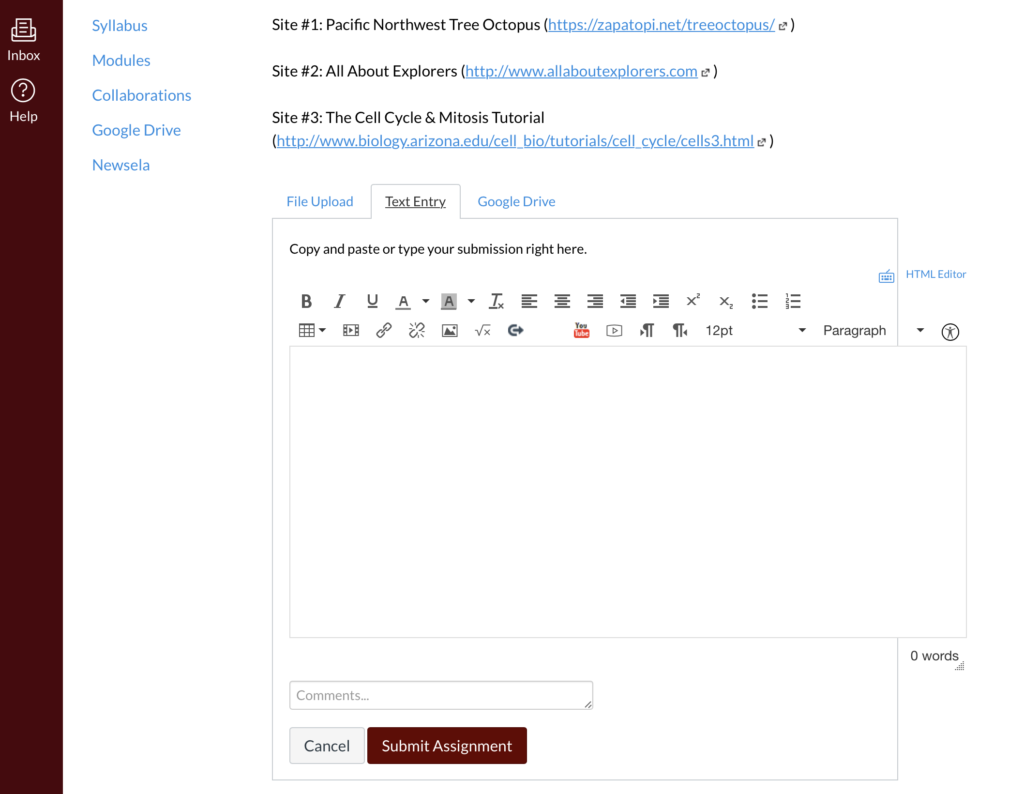
You can start typing in the box, using the formatting tools by selecting the text and clicking on one of the buttons at the top of the text area. WARNING: If you accidentally leave the page without submitting your assignment, you will lose everything you wrote. Also, if you haven’t finished, but need to save your work, the only thing you can do is to use the Submit Assignment button. If your teacher allows multiple tries on an assignment, you can click on the link again, copy what you wrote and paste it into the text area and then continue to finish the assignment. One work around for this is to use a word processing program and when the assignment is finished, select all the text, copy it, and paste it into the text area box. Then always remember to click on the Submit Assignment button to actually turn it in to your teacher.
If you were using some Google docs, you can click on the Google Drive tab to find your work and then submit it to your teacher.